
Private group chats for your teams
A Circle is a private group chat inside your community for the few people who work together: the choir, the ushers, the youth leaders, the board. Your admins set it up and choose who's in it. Nobody else sees what's said.
At a glance
- People in a Circle
- Up to 50, including whoever sets it up
- Who sets them up
- The owner and admins
- Who can be added
- Members of the community only
- Calls in a Circle
- Up to 6 on voice, 4 on video
- Plan
- Business (the community owner's plan)
What's in a Circle
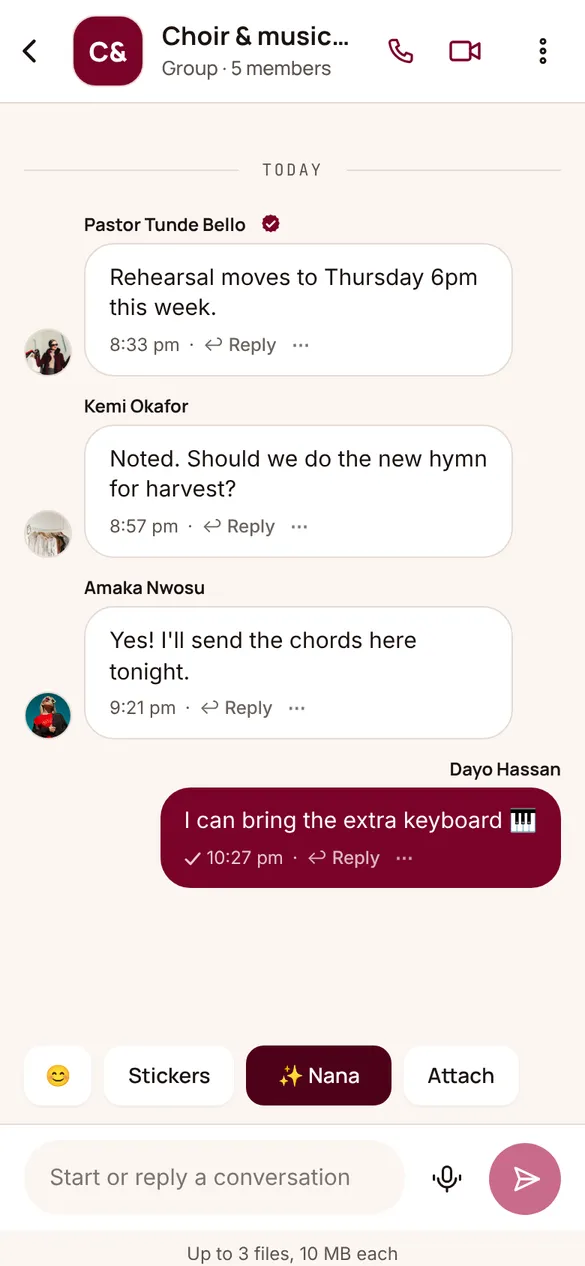
- It's a full group chat in Messages: text, photos, videos, voice notes, documents, stickers, replies and reactions, with Media, links and docs in its ⋮ menu.
- Group calls work in a Circle too: tap the phone or camera at the top to ring everyone (up to 6 talking, or 4 on video), end-to-end encrypted.
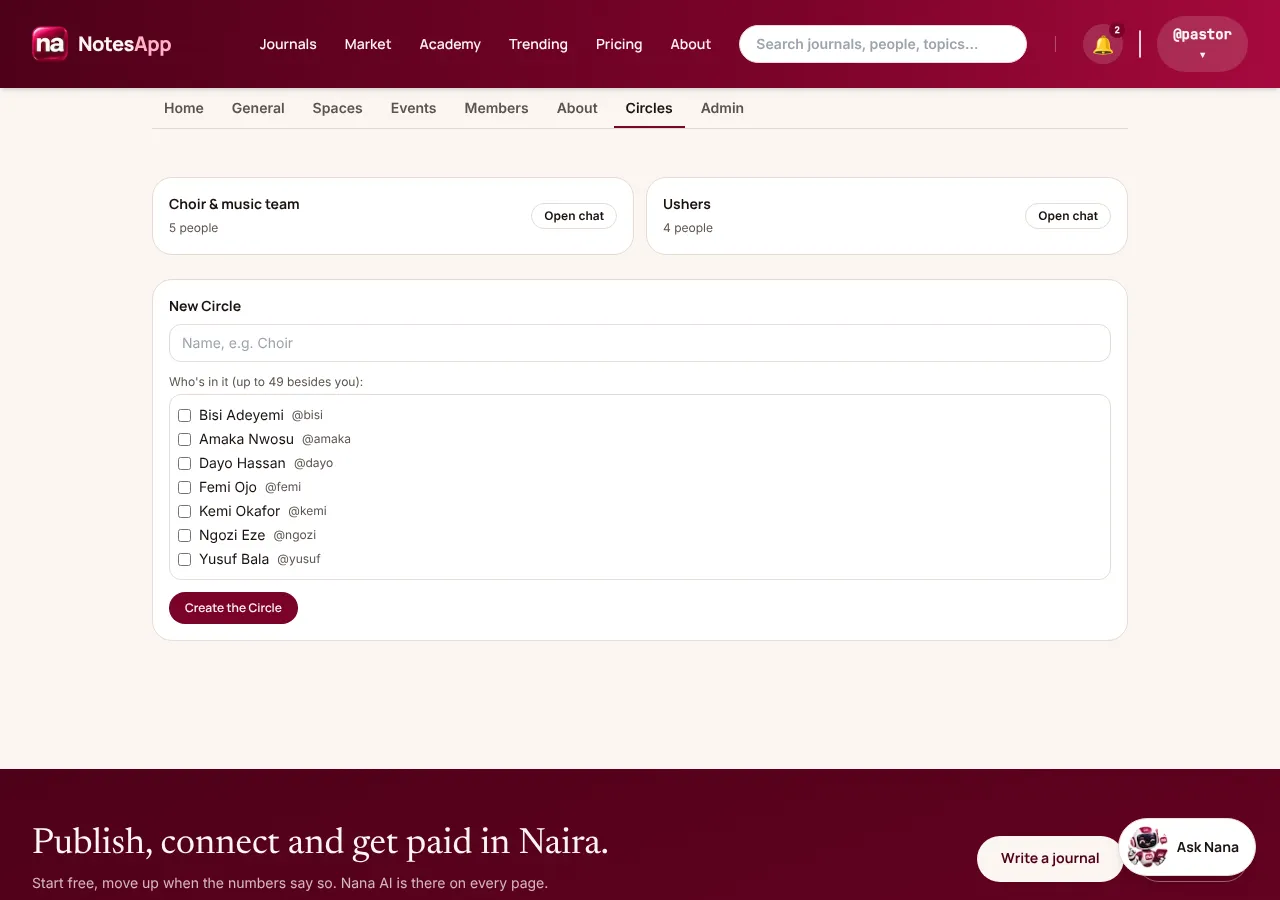
- Members see the Circles they're in on the community's Circles tab, with Open chat. Admins see every Circle in the community.
Setting one up
- On the Circles tab, admins type a name (Choir, Ushers, Youth leaders), tick the members to add and tap Create the Circle.
- Admins add or remove people later. Someone who leaves or is removed from the community also leaves its Circles.
Circles, Spaces or Audio rooms?
- A Space is a topic every member can open. A Circle is a private chat for a few named people. An Audio room is a live talk that ends when it ends.
The rest of Community
- General →
General is your community's announcement channel. Every member is in it from the day they join. Your admins post; members like, comment and share. It's where Sunday's service times, the outreach report and the harvest notice go.
- Spaces →
Spaces are the topics inside your community where members post too: Prayer requests, Youth fellowship, Announcements, Alumni 2015, Volunteers. Each Space is either public or for members only, and you choose who can post in it.
- Audio rooms →
Go live with your members: a Bible study, a Q&A with the principal, a town hall. The host brings up to 4 people on stage to speak; everyone else listens, raises a hand to ask a question, and types in the room's chat.
- Events →
Put your community's programme on its Events tab: Sunday service, the workers' meeting, the harvest, an outreach. Members tap Going or Interested, get reminded before it starts, and can add it to their calendar or join it live.