
Your services, meetings and outreaches, with reminders
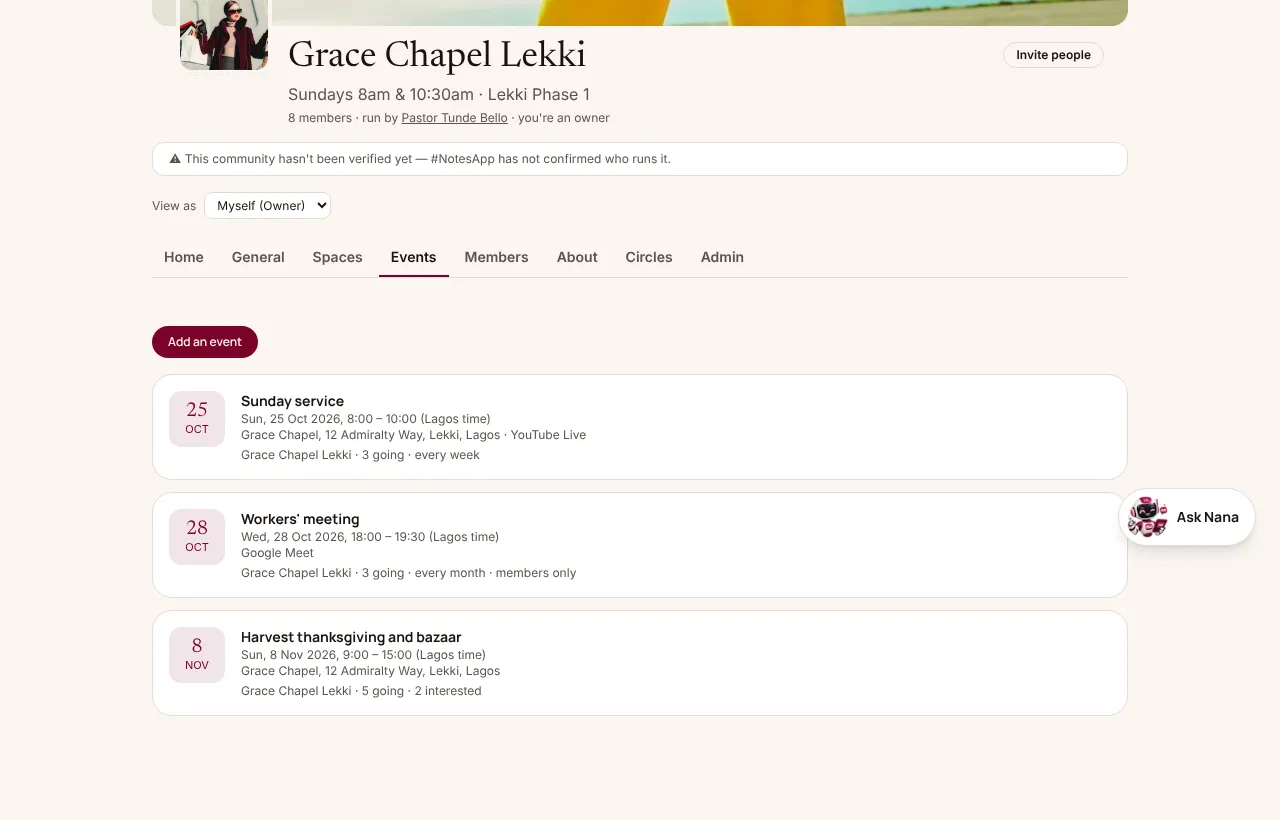
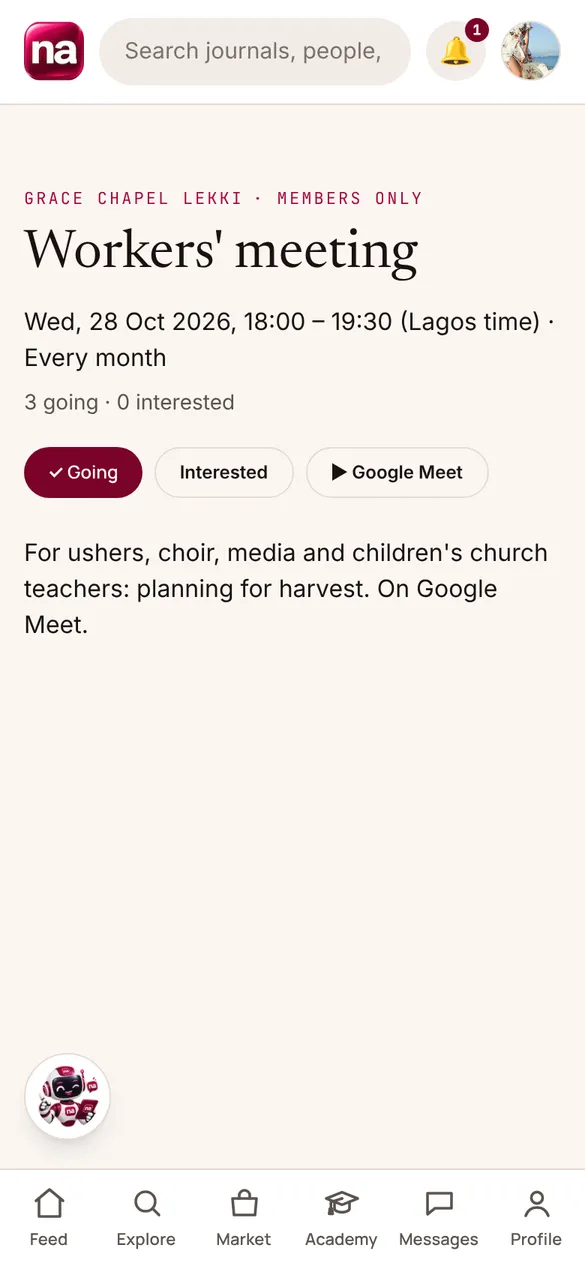
Put your community's programme on its Events tab: Sunday service, the workers' meeting, the harvest, an outreach. Members tap Going or Interested, get reminded before it starts, and can add it to their calendar or join it live.
At a glance
- Who adds them
- The owner and admins (any account can add its own on Events)
- Who sees them
- Everyone, or members only (you choose per event)
- Repeats
- Doesn't repeat, Every week, Every month
- Reminders
- 24 hours and 1 hour before: bell, phone and email
- Live
- Talks in an audio room on #NotesApp; for video or a big audience, a Join live link (YouTube Live, Zoom, Meet or any https link)
- How far ahead
- Up to a year; an event can last up to 14 days
- Tickets
- Free RSVP, or paid ticket types with a QR code each
Adding an event
- On the community's Events tab, admins tap Add an event: a name, when it starts and ends (Lagos time), where it is (with the city and state), and a Join live link if it's streamed or online.
- Choose who sees it: Anyone (it's listed on #NotesApp's Events page, by state and city) or Members only (only your members see it, and only they get the Join live link).
- Make it repeat every week or every month, until a date if you like: set Sunday service once.
Going and Interested
- Members tap Going or Interested; the event shows how many of each.
- Everyone going or interested gets a reminder 24 hours and 1 hour before: a notification, a phone notification and an email.
- Public events have Add to calendar. If you change or cancel an event, everyone going or interested is told.
Live
- To talk live with your members, start an Audio room on #NotesApp: the host, up to 4 speakers and 20 listening, with a chat.
- For video, or an audience bigger than a room holds, an event's Join live link opens YouTube Live, Facebook Live, Zoom, Google Meet or any https link, shown only to that event's audience. Our own live streaming comes later, as a paid add-on.
Paid tickets
- On the event's page, under Tickets, add ticket types (Regular, VIP …), each with a price and how many. With none, the event stays a free RSVP. Paid tickets need a bank account under Rates & payouts.
- Buyers pay by card, up to 10 tickets at a time, and get a QR code for each under My tickets and in their email. Each lets one person in, once.
- At the door, tap Check-in on the event and scan or type the code: it says whether the ticket is valid, already used or refunded, and counts who is in.
- You're paid after the event, less your plan's usual commission. A refunded ticket stops working and goes back on sale.
Giving
- Take offerings, tithes and donations on the same community: switch on Giving under Admin, name your funds, and members give with a Give button and get a receipt. See Community for the charges.
Paid tickets
- On the event's page, under Tickets, add ticket types (Regular, VIP …), each with a price and how many. With none, the event stays a free RSVP. Paid tickets need a bank account under Rates & payouts.
- Buyers pay by card, up to 10 tickets at a time, and get a QR code for each under My tickets and in their email. Each lets one person in, once.
- At the door, tap Check-in on the event and scan or type the code: it says whether the ticket is valid, already used or refunded, and counts who is in.
- You're paid after the event, less your plan's usual commission. A refunded ticket stops working and goes back on sale.
Giving
- Take offerings, tithes and donations on the same community: switch on Giving under Admin, name your funds, and members give with a Give button and get a receipt. See Community for the charges.
The rest of Community
- General →
General is your community's announcement channel. Every member is in it from the day they join. Your admins post; members like, comment and share. It's where Sunday's service times, the outreach report and the harvest notice go.
- Spaces →
Spaces are the topics inside your community where members post too: Prayer requests, Youth fellowship, Announcements, Alumni 2015, Volunteers. Each Space is either public or for members only, and you choose who can post in it.
- Circles →
A Circle is a private group chat inside your community for the few people who work together: the choir, the ushers, the youth leaders, the board. Your admins set it up and choose who's in it. Nobody else sees what's said.
- Audio rooms →
Go live with your members: a Bible study, a Q&A with the principal, a town hall. The host brings up to 4 people on stage to speak; everyone else listens, raises a hand to ask a question, and types in the room's chat.